

Snap Layouts
A bar of layouts at the top of your screen
Pick where the first window goes, then fill the other zones from a list of your open windows. It is the quickest way to get two or three windows side by side on a Mac.
- Opens with ⌃⌥Space
- 5 snaps a day free
- No Screen Recording permission
What it is
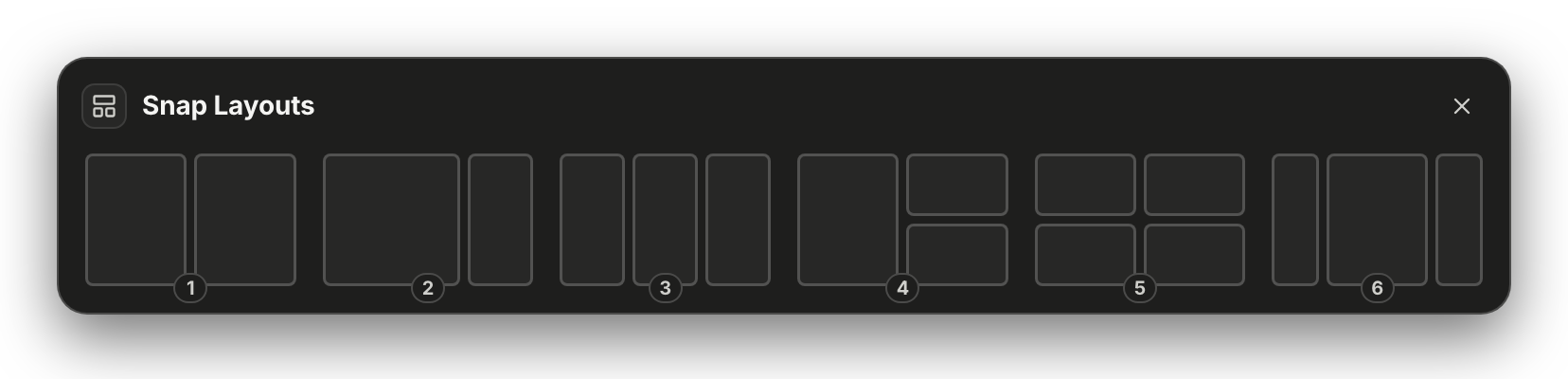
Six layouts, each a set of zones
The bar drops from the top of the screen. Each layout is a small picture of your screen, and each zone in it is a place a window can go.
A layout and each of its zones carry a number, so the whole thing works from the keyboard: arrows or number keys to choose, Return to place, Esc to close.
Opening it
Three ways to open the bar
A shortcut
Opens the bar for the window in front. Every layout and zone shows a number, so you never need the mouse.
Control, Option, Space
A drag to the top
Drag a window towards the top of the screen and the bar appears. The zone under the pointer lights up, a preview shows where the window will land, and you let go.
The top edge of the screen
The menu bar
Click the SnapForMac icon in the menu bar, then Snap Layouts. The bar opens for the window you were just using.
The first row of the popover
How it works
From one window to a full layout
Placing one window is the easy part, and macOS can do that. The step it has no answer to is the second window. This is how SnapForMac handles it.
1. Place the first window
Pick a zone for the window in front. It moves there at once.
2. Choose from your open windows
The next empty zone lists your other windows, by app and title. Click one or press its number.
3. Fill the last zone
The same again for the zone that is left. Press Esc at any point to stop with what you have.
The list shows names, not pictures. Your other windows are listed by app and title. Showing a picture of each one would need the Screen Recording permission, and SnapForMac does not ask for it.
The layouts
Six layouts, and what each is good for
Zones meet edge to edge, with no gap and no overlap, unless you set a gap in Settings.
1Two halves
Two documents, two versions, a page and your notes.
2 zones
2Wide and narrow
The thing you work on, with a reference beside it.
2 zones
3Three columns
Three windows to read across on a wide display.
3 zones
4Main and two stacked
One main window, with two smaller ones on the right.
3 zones
5Four quarters
Four windows in view at the same size.
4 zones
6Centre and two sides
A wide window in the middle and a narrow one on each side.
3 zones
Compared
What macOS does by itself, and what this adds
macOS 15 added window tiling of its own. Halves and quarters are covered there, so they are free here too. The rest is why SnapForMac exists. It also runs on macOS 13 and 14, which have no tiling of their own.
| Feature | Built into macOS 15 | SnapForMac |
|---|---|---|
| Halves and quarters | Yes | Free |
| Drag a window to an edge | Yes | Free |
| A bar of six layouts | No | Free 5 a day, Pro unlimited |
| Fill the other zones from a list of windows | No | With the bar |
| Pair two windows in one shortcut, and swap them | No | Pro |
| Thirds and two thirds | No | Pro |
Free: 5 snaps a day
The whole bar, all six layouts and the list of windows, 5 times a day. The count starts again each day, and the app tells you when you have used them rather than doing nothing.
Pro: no daily limit
SnapForMac Pro starts at $14.99, paid once. It removes the daily limit and adds pairs, thirds and shortcuts you can change.
See pricingQuestions
About Snap Layouts
How do I open the Snap Layouts bar?
Three ways: press Control, Option and Space, click Snap Layouts in the menu-bar popover, or drag a window to the top of the screen.
What happens after I place the first window?
The empty zones of the layout list your other open windows, each with its app name and title. Click one, or press its number, and it fills that zone.
Does the bar show pictures of my windows?
No. It shows the app's name and the window's title. Pictures of windows would need the Screen Recording permission, and SnapForMac does not ask for it.
How many times can I use Snap Layouts for free?
5 snaps a day. The count starts again each day. SnapForMac Pro has no daily limit.
Get SnapForMac
Try the Snap Layouts bar
Halves, quarters and drag to snap are free. SnapForMac Pro starts at $14.99, paid once. Needs macOS 13 or later, on Apple Silicon and Intel.