

Features
Everything SnapForMac does, and what is free
A menu-bar app that puts windows where you want them. Snapping by keyboard and by drag is free. The Snap Layouts bar without a limit, pairs, thirds and your own shortcuts are Pro.
Snap Layouts
Pick a layout, then fill it
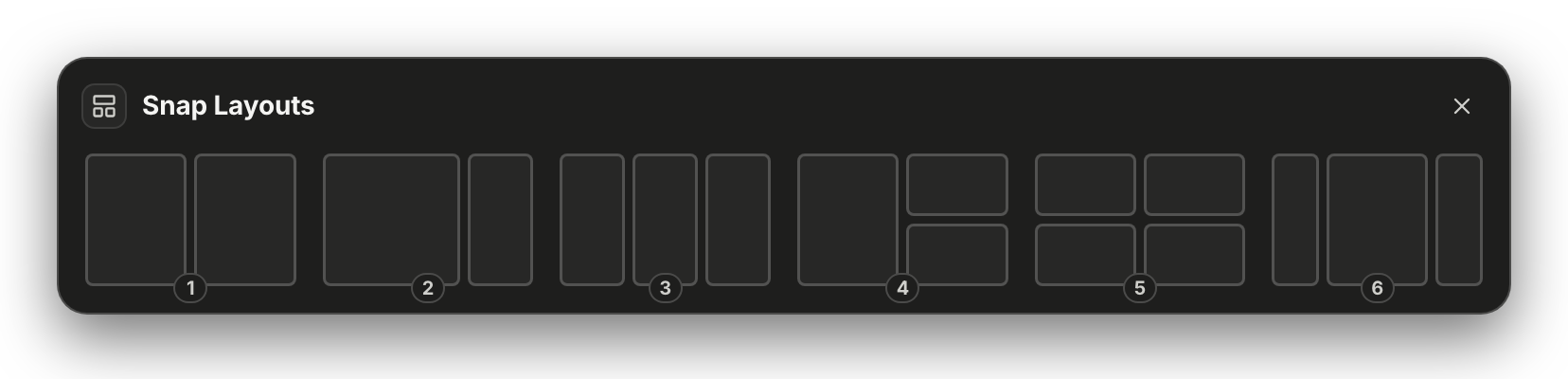
A bar of six layouts drops from the top of the screen. Place the first window, and the other zones list your open windows to fill them with.
- Opens by shortcut, from the menu bar, or by dragging a window to the top of the screen
- Six layouts, from two halves to a wide centre with two sides
- Number keys and arrows work the whole bar without the mouse
Keyboard
A shortcut for every place a window can go
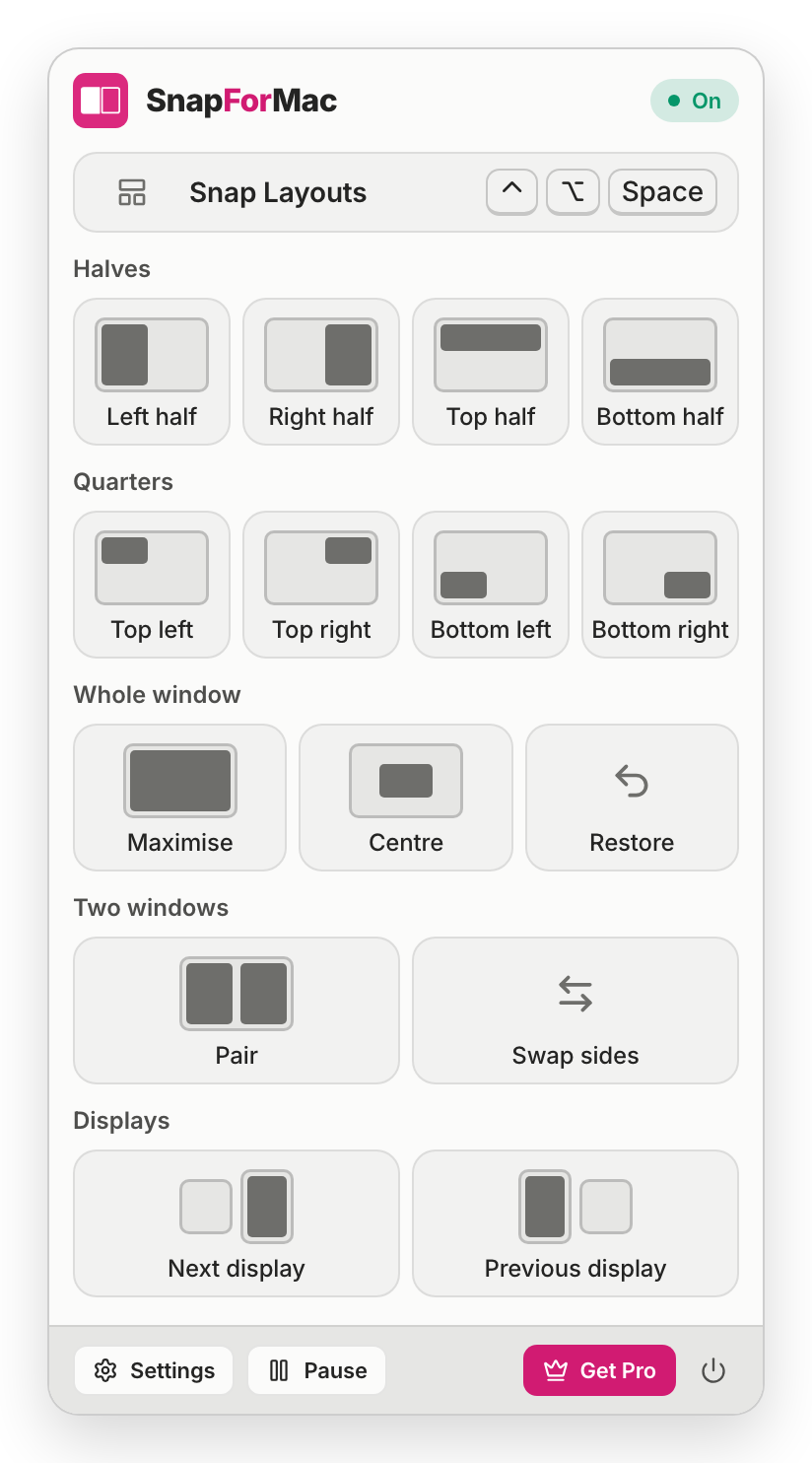
Halves, quarters, maximise, centre and restore, each on its own shortcut. They work in any app, with every SnapForMac window closed.
- Sixteen actions, each with a global shortcut
- Restore puts a window back where it was before the first snap
- One shortcut sends a window to the next or the previous display
Drag
Or just drag the window there
Drag a window to a side for a half, to a corner for a quarter, or to the top of the screen for the Snap Layouts bar. A preview shows where it will land before you let go.
- A preview rectangle shows the zone before you release
- Drag a snapped window away and it gets its old size back
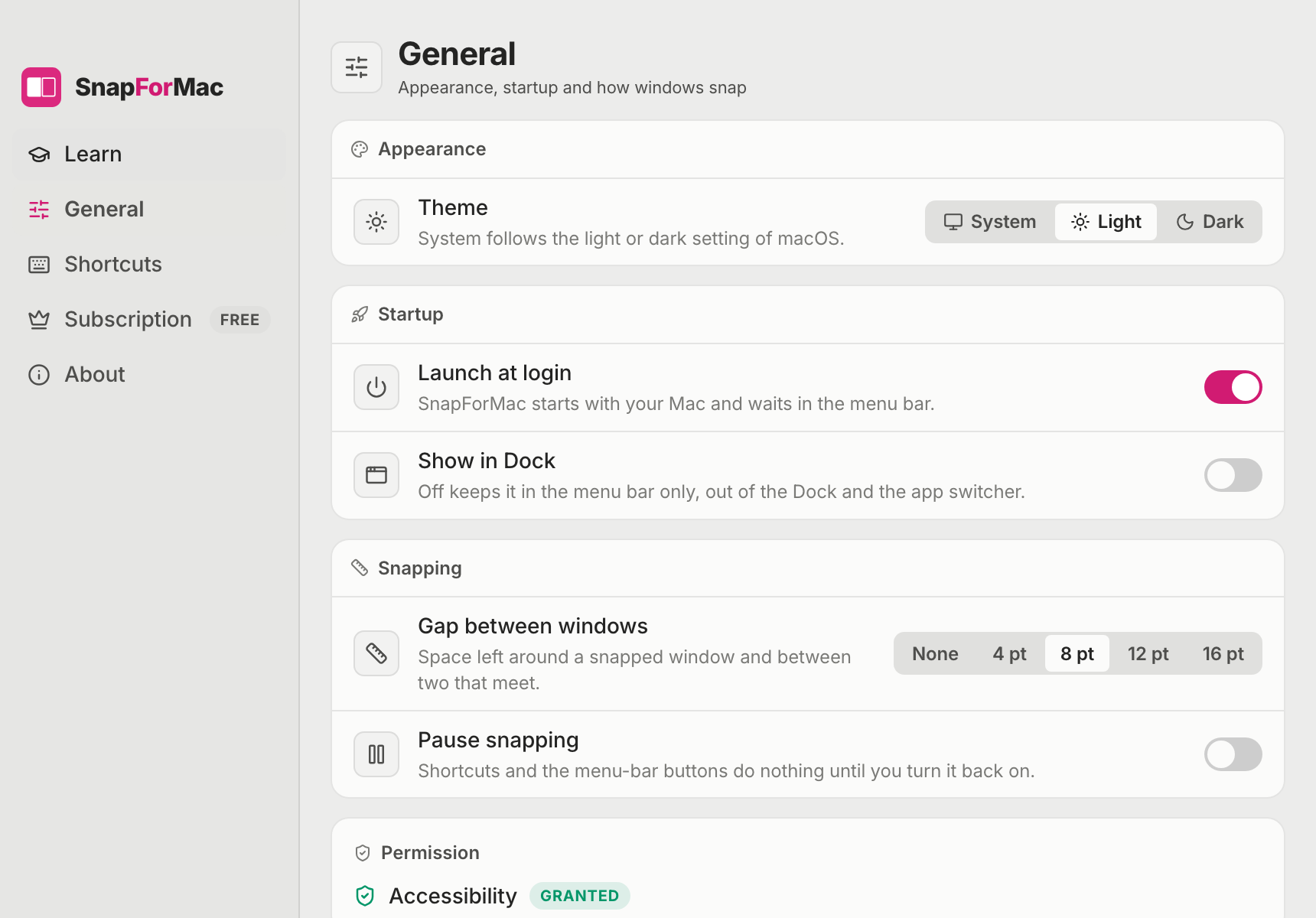
- Choose the gap between windows, from none to 16 points
Pairs
Two windows that behave as one
One shortcut puts the window in front and the one behind it side by side. After that they act as a pair.
- Swap sides with one shortcut
- Resize one window of a pair and, when you let go, its partner follows
- Click back into one and its partner comes forward with it
Shortcuts
Every default shortcut
They work in any app, with every SnapForMac window closed. With Pro you can change each one in Settings, and reset them to these.
Halves
Left half
⌃⌥←Right half
⌃⌥→Top half
⌃⌥↑Bottom half
⌃⌥↓
Quarters
Top left
⌃⌥UTop right
⌃⌥IBottom left
⌃⌥JBottom right
⌃⌥K
Whole window
Maximise
⌃⌥↩Centre
⌃⌥CRestore
⌃⌥⌫Back to the size and place from before the first snap.
Snap Layouts and pairs
Snap Layouts
⌃⌥Space5 snaps a day without Pro.
PairPro
⌃⌥PSwap sidesPro
⌃⌥S
Displays
Next display
⌃⌥⌘→Previous display
⌃⌥⌘←
Reading the keys
- ⌃Control
- ⌥Option
- ⌘Command
If another app already uses a shortcut, SnapForMac says which one is not working so you can pick another.
And also
The small things a window manager needs
Lives in the menu bar
A small icon in the menu bar opens every action. There is no Dock icon unless you ask for one.
More than one display
A window snaps on the display it is on, and one shortcut moves it to the next or the previous one.
Restore
One shortcut puts a window back at the size and place it had before you snapped it.
Flush, or with a gap
Snapped windows meet edge to edge. Prefer some space? Set a gap of 4, 8, 12 or 16 points.
Pause
Switch snapping off for a while from the menu bar or Settings, and back on when you want it.
Light and dark
Follows the light or dark setting of macOS, or stays on the one you pick.
A Learn page
On first launch a short page shows five shortcuts to start with and ticks each one off as you press it.
Signed updates
The app checks for a new version once a day and installs one only when you click, after its signature is checked.
The full list
Every feature, free or Pro
SnapForMac Pro starts at $14.99, paid once. There is no subscription and no trial that runs out: the free features stay free.
Snapping by keyboard
The basics are free, with no time limit.
- Free
Halves
Left, right, top and bottom, each on its own shortcut.
- Free
Quarters
The four corners of the screen.
- Free
Maximise and centre
Fill the usable screen, or centre the window without changing its size.
- Free
Restore
Back to the size and place from before the first snap.
- Free
Next and previous display
Move a window to another display with one shortcut.
- Pro
Thirds and two thirds
Press the same half again to step through half, a third and two thirds.
- Pro
Your own shortcuts
Change any shortcut to the keys you like, and reset them to the defaults.
Snapping by drag
Dragging to an edge or a corner is free.
- Free
Drag to a side or a corner
A half or a quarter, with a preview of where the window will land.
- Free
Old size back
Drag a snapped window away and it returns to the size it had before.
- Free
Gap between windows
None, 4, 8, 12 or 16 points.
The Snap Layouts bar
Free to try: 5 snaps a day. Pro has no daily limit.
- Free
5 Snap Layouts a day
The whole bar, with all six layouts, a few times a day.
- Pro
Snap Layouts without a limit
Open the bar by shortcut, from the menu bar or by dragging a window to the top of the screen, as often as you like.
Pairs
Two windows side by side that keep acting as one.
- Pro
Pair
The window in front and the one behind it, side by side, in one shortcut.
- Pro
Swap sides
The two windows of a pair change places.
- Pro
Linked divider
Resize one window of a pair and, when you let go, its partner takes up the rest.
- Pro
Together
Click back into one window of a pair and the other comes forward too.
The app itself
None of this is behind Pro.
- Free
Menu-bar popover
Every action as a button, plus pause, Settings and Quit.
- Free
Launch at login
Starts with your Mac and waits in the menu bar.
- Free
Light and dark themes
System, light or dark.
- Free
Updates
New versions, checked by signature before they install.
Not yet
What this version does not do
So you know before you download.
Saved pairs. You cannot yet save a pair of apps, such as a browser and your notes, to bring back later.
Scrolling two windows together. A pair does not scroll in step. Each window scrolls by itself.
Tile all windows, and cascade. There is no one action that arranges every open window.
Your own layouts. The Snap Layouts bar has six layouts. You cannot draw a seventh.
Pictures of windows in the bar. Other windows are listed by app and title. Pictures would need the Screen Recording permission.
Full-screen windows and dialogs. A window that is full screen, minimised or a dialog cannot be snapped. The app tells you rather than failing quietly.
Get SnapForMac
Put your windows side by side today
Halves, quarters and drag to snap are free. SnapForMac Pro starts at $14.99, paid once. Needs macOS 13 or later, on Apple Silicon and Intel.